Claude Code is excellent at reading a codebase, but it doesn't watch video natively. Google's Gemini API does — it can ingest an MP4 and return a summary, transcript, or timestamped answer to a question about what's happening on screen. The fix isn't switching tools. It's giving Claude Code a Skill that knows how to call Gemini on your behalf, so the video work happens inside the same terminal session as everything else.
The short answer: create a folder in ~/.claude/skills/ containing a SKILL.md that describes when to analyze video, plus a small Python script that uploads the file to Gemini's Files API and asks your question.
This walkthrough sets up exactly that: a Skill Claude Code loads automatically whenever you ask it to look at a video file.
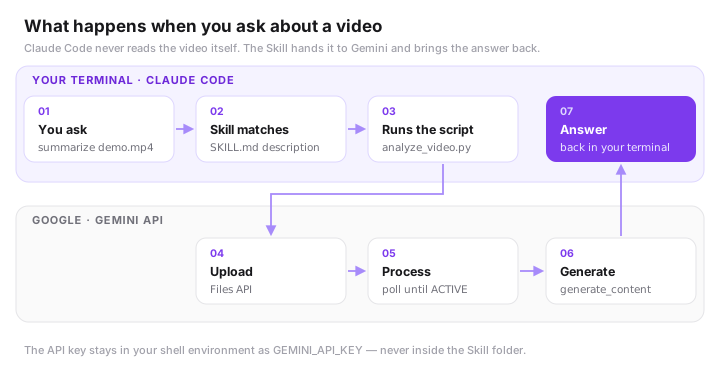
What you're building
A Claude Code Agent Skill — a folder containing a SKILL.md file (instructions Claude reads when relevant) plus a small script that uploads a video to Gemini's Files API and asks it a question. Skills are model-invoked: you don't need to type a slash command — Claude decides to use the Skill on its own once it sees the description matches what you're asking for.
Prerequisites
- A current version of Claude Code (Agent Skills arrived in October 2025, with the 2.0 series)
- A Gemini API key from Google AI Studio
- Python 3 with the
google-genaipackage (pip install google-genai)
Step 1: Choose where the Skill lives
Claude Code looks for Skills in two places:
| Location | Scope |
|---|---|
~/.claude/skills/ |
Personal — available in every project on your machine |
.claude/skills/ (inside a repo) |
Project — committed to git, shared with your team |
For a general-purpose capability like video analysis, a personal Skill usually makes more sense. If your team regularly reviews demo recordings or screen captures as part of the workflow, put it in the project instead so everyone gets it via git.
mkdir -p ~/.claude/skills/gemini-video-analysis
cd ~/.claude/skills/gemini-video-analysis
Step 2: Write the script that talks to Gemini
Create analyze_video.py inside that folder. It uploads the video through Gemini's Files API (required for anything over ~20MB or reused across prompts), waits for processing, then asks the model a question about it.
#!/usr/bin/env python3
"""Upload a video to Gemini and ask it a question about the content."""
import argparse
import os
import sys
import time

from google import genai

def main():
    parser = argparse.ArgumentParser()
    parser.add_argument("video_path", help="Path to the video file")
    parser.add_argument(
        "prompt",
        nargs="?",
        default="Summarize this video, then list the key moments with timestamps.",
    )
    parser.add_argument("--model", default="gemini-2.5-flash")
    args = parser.parse_args()

    api_key = os.environ.get("GEMINI_API_KEY")
    if not api_key:
        sys.exit("GEMINI_API_KEY is not set. Export it before running this skill.")

    client = genai.Client(api_key=api_key)

    print(f"Uploading {args.video_path}...", file=sys.stderr)
    video_file = client.files.upload(file=args.video_path)

    # Video processing is async — poll until Gemini finishes indexing it
    while video_file.state.name == "PROCESSING":
        time.sleep(3)
        video_file = client.files.get(name=video_file.name)

    if video_file.state.name == "FAILED":
        sys.exit("Gemini failed to process this video file.")

    response = client.models.generate_content(
        model=args.model,
        contents=[video_file, args.prompt],
    )

    print(response.text)

if __name__ == "__main__":
    main()
Make it executable:
chmod +x analyze_video.py
Step 3: Write SKILL.md
This is the file Claude actually reads. The description field is the most important line in the whole Skill — it's how Claude decides when to reach for this instead of trying (and failing) to read the video file directly.
---
name: gemini-video-analysis
description: >
  Analyzes video files using Google's Gemini API — summarizing content,
  transcribing dialogue with timestamps, and answering specific questions
  about what happens in a video. Use this whenever the user shares a video
  file (.mp4, .mov, .webm, .avi) and asks to summarize it, transcribe it,
  find a moment in it, or describe what's happening in it.
allowed-tools: Bash, Read
---

# Gemini Video Analysis

## When to use this
Trigger this Skill any time the user references a local video file and
wants to know what's in it — a summary, a transcript, a specific clip
description, or an answer to a question about the footage.

## How to run it
Call the bundled script with the video path and, optionally, a specific
question. If the user didn't ask a specific question, omit the second
argument and the script will default to a general summary with timestamps.

```bash
python3 ~/.claude/skills/gemini-video-analysis/analyze_video.py "<video_path>" "<question>"
```

## Notes
- Requires `GEMINI_API_KEY` to be set in the environment. If it's missing,
  tell the user how to get one from Google AI Studio and export it —
  don't ask them to paste the key into the chat.
- Supported formats: MP4, MPEG, MOV, AVI, FLV, MPG, WebM, WMV, 3GPP.
- Large or long videos take longer to process — mention this to the user
  rather than letting the command appear to hang silently.
- Token cost scales with video length and resolution; for very long
  footage, suggest trimming to the relevant segment first.
Step 4: Set your API key
Don't hardcode the key anywhere in the Skill folder. Export it in your shell profile instead:
echo 'export GEMINI_API_KEY="your-key-here"' >> ~/.zshrc
source ~/.zshrc
Step 5: Test it
Open Claude Code in any project and just ask, naturally:
> Can you summarize demo-recording.mp4 and tell me where the pricing
  question comes up?
Claude Code should recognize the request matches the Skill's description, run analyze_video.py, and return the summary and timestamp — no slash command required. (You can still call it directly with /gemini-video-analysis when you want to force it.) If it doesn't trigger, that's almost always a description problem, not a script problem — see below.
Troubleshooting
- Skill never triggers. Run
/skillsinside Claude Code to confirm the Skill is loaded. If it is, thedescriptionis probably too vague or too generic against your other installed Skills. Claude only sees the first 1,536 characters of a description, so lead with the specific trigger case ("video file," "summarize," "transcribe") rather than a general mission statement. GEMINI_API_KEY is not seteven after exporting it. Claude Code inherits your shell environment at launch — restart the session after adding the variable.- Script hangs. Large video files take real time to upload and process on Gemini's side before the
generateContentcall can run; this is expected, not a bug.
Once this is working, the same habits that make Claude Code reliable elsewhere apply here too — see 3 Claude Code hacks that change how you ship for plan mode, checkpoints and context management. For a bigger example of Skills working together, see how we run LinkedIn outreach with 11 Claude skills.
Where GenExecutive fits in
This is one small Skill. Most teams we work with end up wiring together a handful of them — video analysis, meeting-note extraction, CRM updates — into a single operating layer that runs without anyone babysitting it. If you'd rather have that built and maintained than build it yourself, that's what our AI automation service does.
Frequently Asked Questions
Can Claude Code analyze video files?
Not natively — Claude Code reads code and text, but it doesn't watch video. Google's Gemini API does, so the practical fix is a Claude Code Skill that uploads the video to Gemini and returns the summary, transcript, or answer inside the same terminal session.
What is a Claude Code Skill?
A Skill is a folder containing a SKILL.md file — instructions Claude reads when they're relevant — plus any scripts it needs. Skills are model-invoked: Claude decides to use one when your request matches the Skill's description, though you can also run one directly as a slash command.
Where do Claude Code Skills live?
Personal Skills go in ~/.claude/skills/ and are available in every project on your machine. Project Skills go in .claude/skills/ inside a repository, are committed to git, and are shared with everyone on the team.
Why isn't my Claude Code Skill triggering?
First run /skills to confirm it is loaded. If it is, the problem is almost always the description, not the script. Lead the description with the specific trigger case — a video file, summarize, transcribe — rather than a general mission statement, so Claude can match it against your request and it isn't crowded out by other installed Skills.
Do I need to put my Gemini API key in the Skill?
No — never hardcode it in the Skill folder. Export GEMINI_API_KEY in your shell profile instead, then restart Claude Code so the session inherits it.